Want an easy way to harden your workstations? Disable the Run box for standard users. It’s a classic, straightforward restriction that stops curious users and particular basic social engineering exploits that rely on the Run box.
Note: This disables using the Explorer location bar to directly access things like a UNC or direct path by manually typing and hitting Enter:
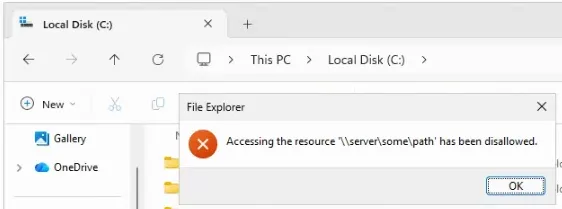
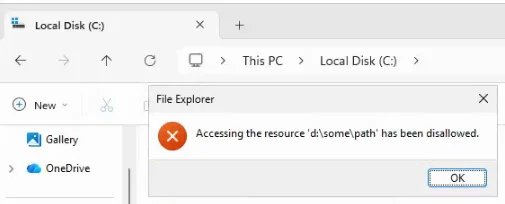
Why Do This? (The “ClickFix” Connection)
There’s a rise in “ClickFix” or “ClearFake” social engineering attacks. These scams trick users into visiting a fake “Fix It” page that instructs them to:
- Press Win+R.
- Paste a malicious PowerShell script.
- Hit Enter.
By disabling the Run box, you break the primary delivery method for these “copy-paste” vulnerabilities. If the user can’t open the Run box, the attacker’s script has nowhere to go.
How to Set It Up
- Create a New GPO: Open the Group Policy Management Console and create a GPO named
Restrict - Win+R. - Link it to your User OU: Ensure it is linked to the OU containing your User accounts, not just the computers.
- Enable the Policy: Navigate to:User Configuration > Administrative Templates > Start Menu and Taskbar
- Find Remove Run menu from Start Menu, set it to Enabled, and click OK.
- Security Filtering: * In the Scope tab, remove Authenticated Users.
- Add the Domain Users group (so it hits standard staff).
- In the Delegation tab > Advanced, find Domain Admins and check Deny for Apply group policy. This ensures your IT team can still use the shortcut.
The Result
The next time a standard user logs in, the Win+R shortcut will be dead, and the “Run” option will vanish from the Start menu. It’s a 5-minute fix that drastically reduces the success rate of browser-based social engineering.
Note: For this to take effect immediately, users will need to sign out and back in, or you can run gpupdate /force in their terminal.
If you are on Windows Home or just want to deploy this via a script/GPP (Group Policy Preference), you can skip the GUI and go straight to the registry.
To disable the Run command, you need to create a DWORD value in the user’s registry hive.
The Registry Path
- Key:
HKEY_CURRENT_USER\Software\Microsoft\Windows\CurrentVersion\Policies\Explorer - Value Name:
NoRun - Value Type:
REG_DWORD - Value Data:
1(Enabled) |0(Disabled)
How to do it via Command Line (Quickest)
If you want to apply this instantly without clicking through menus, run this in a standard Command Prompt:
DOS
reg add "HKEY_CURRENT_USER\Software\Microsoft\Windows\CurrentVersion\Policies\Explorer" /v "NoRun" /t REG_DWORD /d 1 /f
How to do it via .reg file
If you want to hand a file to someone to double-click, paste this into Notepad and save it as DisableRun.reg:
Plaintext
Windows Registry Editor Version 5.00

[HKEY_CURRENT_USER\Software\Microsoft\Windows\CurrentVersion\Policies\Explorer]
"NoRun"=dword:00000001
Why this is better for “Non-Admins”
If you are pushing this through a GPO but don’t want to use the “Administrative Template” (the setting discussed earlier), you can use Group Policy Preferences (GPP):
- In your GPO, go to User Configuration > Preferences > Windows Settings > Registry.
- Create a New Registry Item using the path above.
- On the Common tab, check Item-level targeting.
- Set the targeting to Security Group IS NOT Domain Admins.
This achieves the same result as the “Deny Apply” trick but is often easier to manage at scale because you can see all your registry tweaks in one list.
Note: Just like the GPO method, you’ll need to restart explorer.exe or log off and back in for the Run box to actually disappear.